Workshop Hands-On #3
Evaluations
Custom Evaluation Methods & Leaderboard Set Up
🚀 In this last hands-on session of the workshop, we will create and upload a custom evaluation method, debug submissions and evaluations, and set up the leaderboard to show the results.
🤷 We've made this hands-on, on purpose, a bit more difficult. Still, if you encounter any problems and are having a hard time figuring things out, don’t hesitate to ask for help from workshop hosts.
Make sure to work closely with your team and troubleshoot any issues as you progress through the steps!
1. Upload a first evaluation method
We'll be looking at creating an evaluation container, much like the algorithm from the previous hands-on.
Firstly, navigate to the evaluation-methods/ directory in your workshop files.
Secondly, everyone in the team should ensure the evaluation method works locally:
./test_run.sh
This should build the image and subsequently execute it as a container image. When running the evaluation method locally, it sources the fixed inputs from test/input/. Remember: on the platform, the content of input/ will differ for each submission, as it will contain all the outputs for that submission.
After verifying your method runs locally, it is time to upload the evaluation-method image. Since there can only be one active image per phase, it makes sense that only the Team Leader exports the evaluation method, but feel free to delegate. You can export a .tar.gz file using the provided bash script:
./save.sh
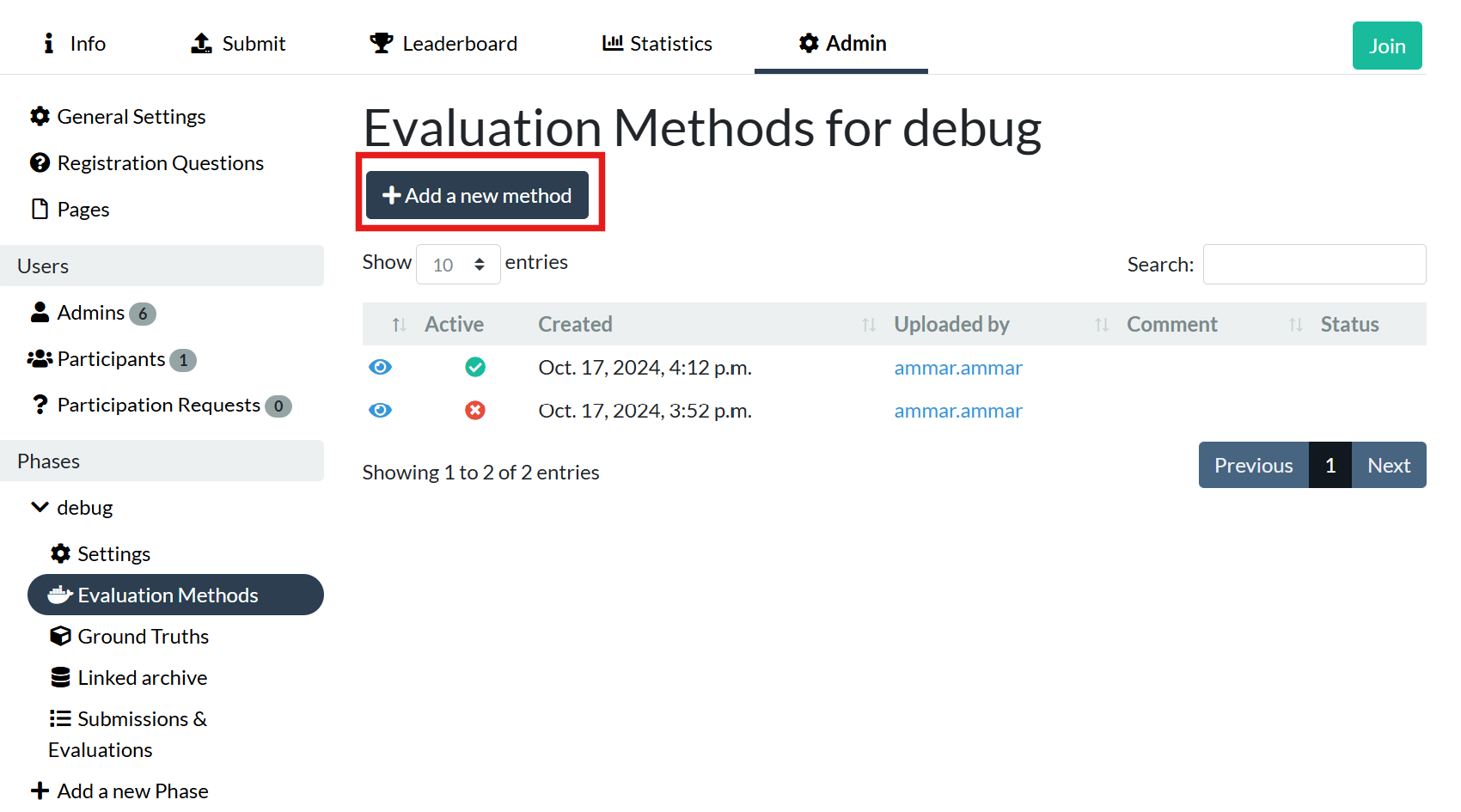
Then navigate to Admin → [name of phase] → Evaluation Methods. Press the button: Add a new method and upload the just generated .tar.gz.
2. Submit the Algorithms
Each team member should submit the algorithm developed during the previous hands-on session.
Navigate to the Submit tab on your challenge:

And in the dropdown under 'Algorithm' select your algorithm image and press Save.

3. Track execution of the submissions and evaluation method
As mentioned during the presentation, be sure to check the ongoing submissions and their evaluations.
You can get an overview of the submissions via:
Admin → [name of phase] → Settings → Submission & Evaluations
4. Fixing issues.
You might detect some problems. Investigate the logs and evaluation detail pages to identify the issue. Look for error messages or discrepancies. Is it the algorithm or the evaluation method that is failing? To see the logs of the evaluation, go to the Evaluation & Submission tab, click on the evaluation ID, and scroll down to the Admin section.
5. Re-build and Re-upload
After identifying and fixing the issue, rebuild and re-upload the evaluation method. Remember, a new method only needs to be uploaded once; only one method can be active per phase.
6. Re-evaluate Existing Submissions
Wait for the new evaluation-method container to pass inspection and become active.
Once the new image is active, the submissions are not automatically re-evaluated. Re-evaluating all existing submissions is a costly procedure, so this needs to be done for each submission separately.
In the Submissions & Evaluations tab, click on the Submission ID of the submission you want to re-evaluate:
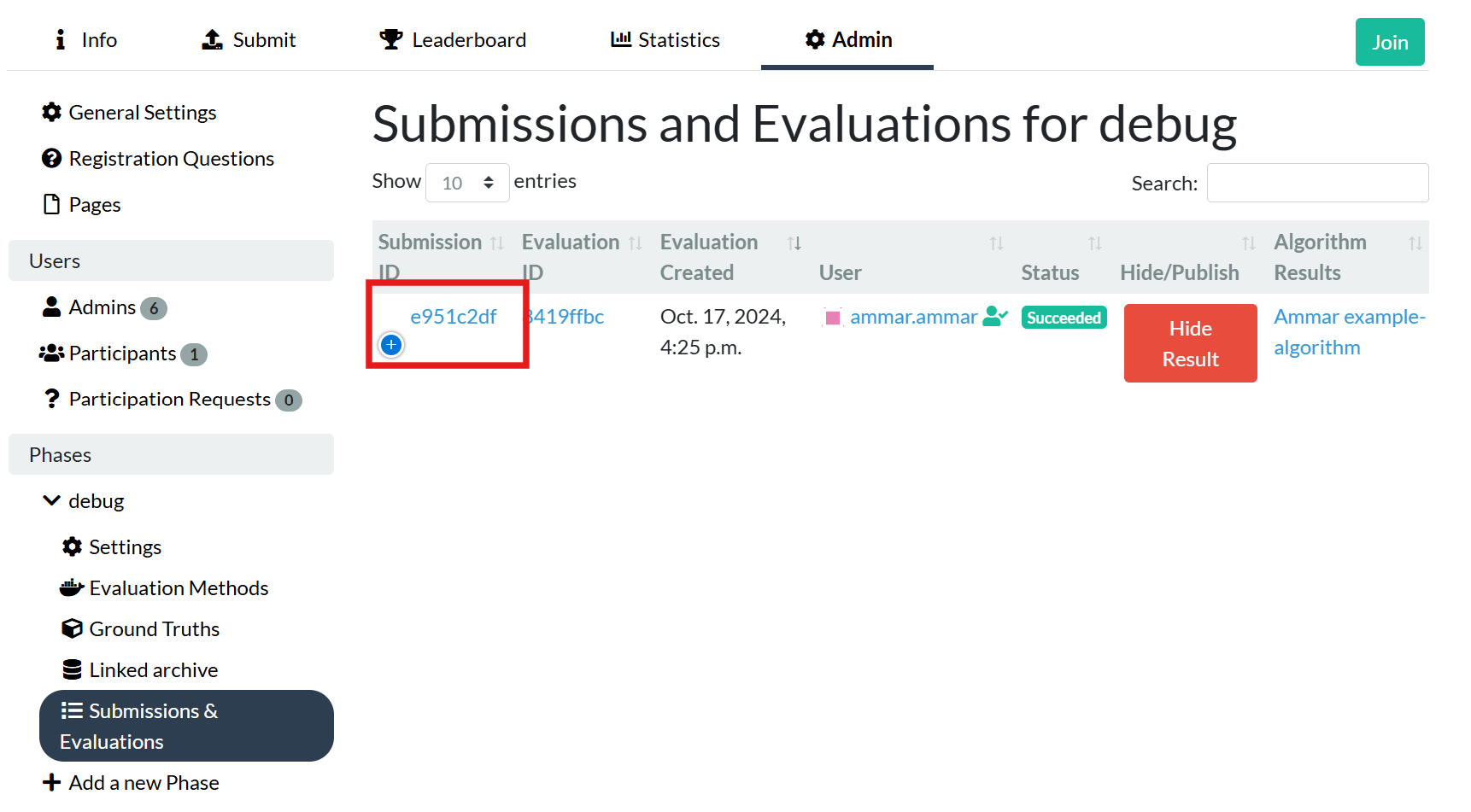
There, find the button to re-evaluate the submissions:

Repeat this for all the submissions.
Once the submissions have been re-evaluated. Re-check for any failures or errors.
If there aren't any issues, a set of successful submissions should now be visible in your admin overview. Well done! 🙏
However, as you might have noticed, the leaderboard is visible but is sadly devoid of visible entries. We'll configure it correctly in the next step.
7. Configure the Leaderboard
The leaderboard needs to be told how to interpret the generated metrics. Pull up the reported metrics.json that the evaluation method generated based on your algorithm submissions. To get there, go to Admin → [Phase name] → Evaluations & Submissions and click on one of the successful evaluation IDs and scroll down until you see the Metrics.
The Team Leader should go to the scoring settings and in collaboration with the team fill in the score path and score title:
Admin → [Phase name] → Settings → Scoring Tab.
If everything was set up correctly, each successful submission should now appear on the leaderboard. So, who’s the winner?🏆